
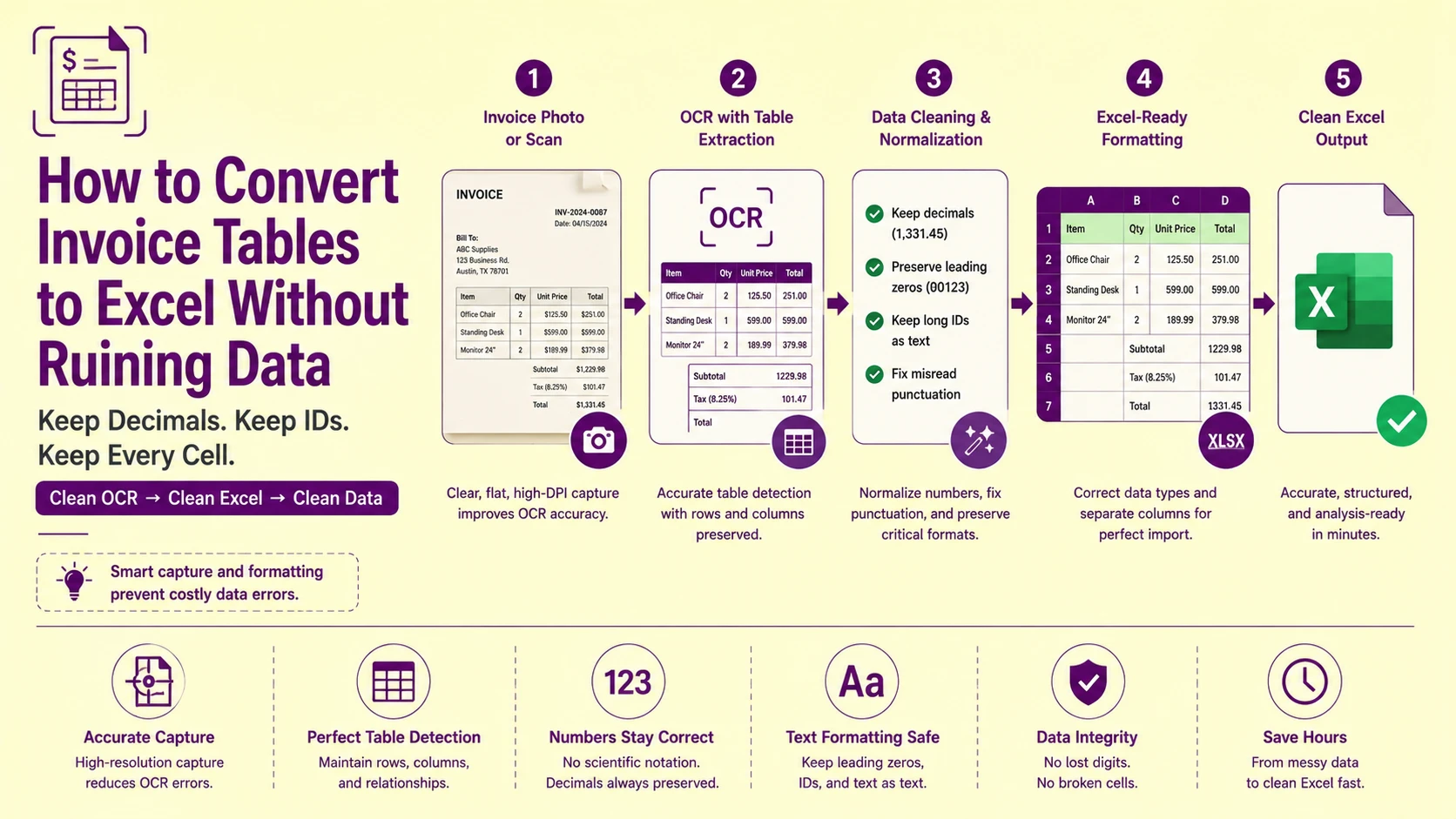
When a US small business owner photographs a stack of vendor invoices after a quarterly close and pastes the OCR-extracted totals directly into an unformatted Excel worksheet, three things happen simultaneously: long order IDs silently convert to scientific notation, decimal points vanish from dollar amounts turning $1,200.50 into $120,050, and multi-column table data collapses into a single merged cell string that no formula can parse.
The bookkeeper then spends the next two hours manually re-entering data that the OCR engine already extracted correctly; the corruption happened entirely in the Excel import layer, not in the recognition pass.
Every one of these failures has a specific, preventable technical cause. None of them require a different OCR tool. All of them are resolved by understanding exactly where data integrity breaks down between the image extraction stage and the spreadsheet cell, and inserting the correct pipeline step at each break point before the data touches Excel.
The Three Data Destruction Events Between OCR Output and Excel Cell
US bookkeepers and administrative assistants processing invoice images face three independent data destruction events that occur in sequence, each at a different pipeline stage. Identifying which event caused a specific error is the fastest path to the correct fix.
Event 1 — The Decimal Drop: occurs during the OCR binarization stage when a thermal receipt's decimal point pixel cluster falls below the minimum connected-component size threshold and is classified as background noise rather than a character. The engine extracts $120050 instead of $1,200.50 — a 100× magnitude error.
Event 2 — Scientific Notation Conversion: occurs when Excel's "General" cell format auto-infers the data type of a pasted long numeric string and converts it to floating-point scientific notation. Order ID 450000012345 becomes 4.5E+11 — the original string is unrecoverable without the source document.
Event 3 — Cell Merge Collapse: occurs when the OCR engine's horizontal scan pass processes a multi-column invoice table without zone segmentation, merging Qty | Unit Price | Total into a single string 1 $45.00 $45.00 in one cell rather than distributing values across three columns.
Each event requires a different fix applied at a different stage. Fixing Event 3 does not prevent Event 2. Preventing Event 1 does not address Event 3. The workflow blueprint at the end of this guide chains all three fixes in the correct sequence.
Also Read: How to Extract Text from Invoices Safely | PictureText
The Decimal Drop: Why Thermal Receipt Printers Are OCR's Worst Enemy
Thermal receipts — the standard output of point-of-sale systems at every US retailer, restaurant, and service vendor — use heat-sensitive paper coated with a chemical developer layer instead of ink. The thermal print head applies localized heat to trigger the color reaction. No ink cartridge, no ribbon, no toner.
The critical limitation for OCR processing: the decimal point on a thermal receipt is printed by the same heat application process as every other character, but it is physically the smallest mark the print head produces, a single dot approximately 0.3–0.5mm in diameter at standard receipt print density. At the 150–200 DPI effective resolution of a smartphone camera photograph of a receipt held at arm's length, this 0.5mm dot produces a connected pixel cluster of 2–4 pixels.
Most OCR binarization algorithms apply a minimum connected-component size filter during the binary conversion pass — pruning all connected pixel clusters below a minimum size threshold to eliminate paper grain, dust specks, and printer noise from the character candidate set. A standard minimum threshold of 5–8 connected pixels eliminates background noise effectively on standard document scans. On a thermal receipt photograph, it also eliminates every decimal point — because the 2–4 pixel decimal dot falls below the threshold and is classified as noise.
The engine then outputs $120050 from a receipt showing $1,200.50. The magnitude error is exactly 100× — because the decimal point shifted two positions left when it disappeared. On a $1,200.50 vendor payment, this produces a $118,849.50 discrepancy in the accounts payable ledger.
The Three-Part Fix for Thermal Receipt Decimal Drop
Fix Part 1 — Capture distance and DPI: photograph thermal receipts from 15–20cm directly overhead rather than arm's length. At 20cm capture distance, a 0.5mm decimal point produces a 6–9 pixel cluster at the effective resolution of a modern 12MP smartphone camera — above the minimum connected-component threshold for most binarization algorithms.
Fix Part 2 — Contrast enhancement before upload: apply CLAHE (Contrast Limited Adaptive Histogram Equalization) to the receipt photograph before uploading to any OCR tool. Thermal receipt ink fades over time due to heat and UV exposure, reducing the contrast ratio between the printed characters and the paper background. CLAHE enhances local contrast within each image tile independently, boosting the faded decimal point's pixel cluster intensity relative to the background — increasing its effective contrast ratio from 40–60% (faded) to 75–85% (CLAHE-enhanced).
Fix Part 3 — Post-extraction decimal validation: after extraction, run a validation formula on every extracted dollar amount: in Excel, =ISNUMBER(FIND(".",A2)) returns FALSE for any cell where a decimal point is absent from a value that should have cents. Flag all FALSE results for manual verification against the source receipt before the value enters any accounting formula.
Also Read: OCR Not Working? 9 Common Fixes for Unreadable Text Recognition
The Scientific Notation Trap: How Excel Destroys Long Order IDs Without Warning
This data destruction event is entirely an Excel behavior — the OCR engine extracts the correct string, and Excel silently converts it to an unrecoverable approximation. Understanding the exact mechanism makes the prevention trivial.
Excel's default cell format is "General" — an auto-inference mode that applies type detection logic to every value pasted into a cell. When a string contains only digit characters and exceeds 15 significant digits in length, Excel's "General" format converts it to floating-point scientific notation.
The 15-digit threshold is not arbitrary — it reflects the precision limit of IEEE 754 double-precision floating-point numbers, which Excel uses internally for all numeric values. A 16-digit order ID like 4500000123456789 cannot be represented exactly in IEEE 754 double precision. Excel converts it to the nearest representable float (4.5E+15) and discards the original string permanently. The conversion is lossy and irreversible — once Excel has converted the string to a float, the original digit sequence cannot be recovered from the cell value.
US e-commerce businesses, Amazon seller accounts, Shopify order management systems, and every major US logistics platform use order IDs, tracking numbers, and transaction reference strings that routinely exceed 15 digits. Every one of these strings is at risk of silent scientific notation conversion when pasted into an unformatted Excel cell.
Also Read: How to Automatically Extract Text from Bulk Shipping Labels & Manifests
The Pre-Format Protocol: Three Clicks Before Pasting
The fix is a mandatory cell pre-formatting step executed before any OCR-extracted data is pasted into Excel:
-
Select the column(s) that will receive order IDs, tracking numbers, invoice numbers, or any other long alphanumeric string
-
Right-click → Format Cells → Number tab → select "Text" from the category list
-
Click OK — the column is now formatted as Text, which instructs Excel to treat all incoming values as raw string literals regardless of their character content
With the column formatted as Text before pasting, 4500000123456789 pastes as the exact 16-character string 4500000123456789 — no scientific notation conversion, no digit truncation, no magnitude error. The small green triangle that appears in the top-left corner of each cell is Excel's "number stored as text" warning — it is informational, not an error, and does not affect any downstream formula that references the cell as a string.
Critical timing: the Text format must be applied before pasting. Applying Text format to cells that already contain scientific notation values does not recover the original string — it converts the scientific notation float to its text representation (4.5E+15), which is still not the original order ID. Pre-format first, paste second. This order cannot be reversed.
Cell Merge Collapse: Why Invoice Tables Lose Their Column Structure
A vendor invoice contains spatially separated data zones: line item descriptions in a left column, quantities in a center column, unit prices in a right-center column, and extended totals in a far-right column. These four columns share the same horizontal y-coordinate range — all four run from the top of the table to the bottom.
A standard OCR engine executing a horizontal left-to-right scan pass without spatial zone segmentation reads across all four columns simultaneously at every y-coordinate level, merging the content of all four columns into a single string at each horizontal scan line. The output for a three-line invoice looks like:
Widget A 2 $45.00 $90.00 Widget B 5 $12.00 $60.00 Shipping 1 $8.50 $8.50
One continuous string. No column structure. No cell boundaries. No formula can extract the individual values from this merged stream — manual re-entry is the only recovery path.
The Tab Delimiter Extraction Method: Clean Three-Click Text-to-Columns Conversion
The correct OCR extraction approach for tabular invoice data produces tab-delimited output rather than space-delimited or comma-delimited output, because tab characters are the delimiter that Excel's "Text to Columns" wizard handles most cleanly for invoice data.
When PictureText.org extracts tabular data from a structured invoice image, the spatial gap between columns is mapped to a tab character delimiter in the output string. Each row of the invoice table extracts as a tab-separated string:
Widget A[TAB]2[TAB]$45.00[TAB]$90.00
Widget B[TAB]5[TAB]$12.00[TAB]$60.00
Shipping[TAB]1[TAB]$8.50[TAB]$8.50
Pasting this tab-delimited string into Excel automatically distributes each tab-separated value into an individual cell, Excel's paste handler treats tab characters as column separators natively, with no additional wizard steps required. Each column lands in its correct cell without any manual splitting.
For tools that produce space-delimited rather than tab-delimited output, Excel's Text to Columns wizard (Data tab → Text to Columns → Delimited → Space) performs a clean three-click conversion — but requires that the column data itself contains no internal spaces (which unit prices like $1,200.50 do not, but description fields like Widget Assembly Kit do, causing incorrect splits at internal spaces within the description).
The recommended approach: always request tab-delimited output from the OCR tool when processing invoice tables. Tab delimiters avoid the internal-space splitting problem entirely.
US-Specific Invoice Formats and Their OCR Failure Profiles
US vendor invoices vary significantly in format by vendor category and business size — and different format classes produce different OCR failure signatures:
|
Invoice Type |
Common US Source |
Typical Format Issue |
Primary OCR Failure |
Fix |
|
Thermal POS receipt |
Retail, restaurants, gas stations |
Faded ink, curled paper, small decimal |
Decimal drop, character fade |
CLAHE + close-range capture |
|
PDF invoice (digital) |
SaaS vendors, AWS, Google Cloud |
Native text layer — no OCR needed |
N/A — use native PDF extraction |
Run pdffonts first |
|
Printed laser invoice |
B2B vendors, contractors |
Clean print, multi-column table |
Column merge without zone segmentation |
Tab-delimited extraction |
|
Handwritten invoice |
Independent contractors, tradespeople |
Cursive amounts, informal layout |
Amount misread, column confusion |
Handwriting model + manual verify |
|
E-mailed invoice screenshot |
Any vendor with image-based invoices |
JPEG compression, logo noise |
DCT artifacts on numbers, logo contamination |
PNG re-save + zone masking |
|
Amazon/eBay order summary |
E-commerce platforms |
Long order IDs, multi-line items |
Scientific notation on order IDs |
Pre-format Excel column as Text |
|
Utility bill scan |
US utilities (ConEd, PG&E, Xcel) |
Account numbers, usage tables |
Account number corruption, table merge |
Text column pre-format + tab delimiter |
|
Medical/dental bill |
Healthcare providers |
CPT codes, insurance adjustments |
Code confusion (0 vs O), decimal drop |
Code validation + decimal check |
Google Sheets Users: The Paste Special Protocol
US bookkeepers and small business owners who work in Google Sheets rather than Excel face a slightly different scientific notation protection workflow — because Google Sheets applies its own auto-type inference independent of Excel's "General" format.
Google Sheets' equivalent protection against long-number conversion requires a different approach: paste into a column that has been pre-formatted as "Plain text" (Format → Number → Plain text) before pasting OCR-extracted data. The behavior is identical to Excel's Text format — all pasted values are treated as string literals regardless of their character content.
The second Google Sheets-specific risk: formula auto-detection. If an extracted string begins with =, +, or - (common in accounting documents where negative amounts appear as -$45.00 or credits appear as +$12.00), Google Sheets interprets the leading character as a formula indicator and attempts to parse the string as a formula — producing a #NAME? or #ERROR! result.
Fix: ensure extracted values beginning with - or + are wrapped in double quotes in the plain-text formatted cell, or use the apostrophe prefix trick (' before the value) to force string literal interpretation.
Also Read: Medical Record OCR Transcription | Protect Patient Privacy with Online Tools
The Batch Receipt Processing Workflow for US Small Businesses
End-of-month receipt reconciliation, collecting and entering all vendor receipts, client expense reports, and purchase records for the monthly close, is the highest-volume invoice OCR use case for US small business owners, solo accountants, and bookkeeping services.
A typical monthly close involves 50–200 individual receipts spanning thermal POS receipts, emailed PDF invoices, photographed paper receipts, and downloaded order confirmation screenshots. Processing each individually is time-prohibitive. The correct architecture is a batch upload workflow with consistent preprocessing:
Pre-sort by receipt type: separate thermal POS receipts (requiring CLAHE preprocessing), PDF invoices (requiring native text extraction check first), and photograph receipts (requiring geometry correction). Each type class requires different preprocessing — batch by type, not by date.
Standardize capture settings before photographing: set your smartphone camera to manual focus at 20cm capture distance, disable flash, enable the grid overlay for alignment, and use the volume button shutter to minimize motion blur. Applying these settings once before beginning the photography session, standardizing capture conditions across the full batch eliminates per-receipt preprocessing variation.
Upload to PictureText.org as the zero-cost batch extraction tool for converting receipt image files to raw numeric text. PictureText's browser-local processing architecture means no receipt image data is transmitted to external servers, a critical consideration for receipts containing client names, purchase details, and financial amounts that constitute business financial records.
Export as tab-delimited text from PictureText's output interface, then use Excel's "Get Data from Text/CSV" import wizard (Data → Get Data → From Text/CSV) with manually configured column types — setting all ID and reference number columns to Text data type before loading. This bypasses Excel's auto-type inference entirely for the entire batch in a single import operation.
Also Read: How to Copy Code from Screenshots Without Indentation or Syntax Errors
Root Cause Analysis: Step-by-Step Troubleshooting Checklist
Error: Dollar amounts on thermal receipts extract with missing decimal points (e.g., $120050 instead of $1,200.50)
Root Cause: The thermal receipt's decimal point pixel cluster (2–4 pixels at standard smartphone capture distance) fell below the OCR binarization algorithm's minimum connected-component size threshold and was pruned as background noise before the recognition pass executed.
Fix: Re-photograph from 15–20cm directly overhead with the receipt lying flat on a white surface. Apply CLAHE contrast enhancement to the photograph before uploading. After extraction, validate all dollar amounts using =ISNUMBER(FIND(".",A2)) — flagging any value where the decimal point is absent for manual verification.
Error: Long order IDs and invoice numbers appear as scientific notation in Excel (e.g., 4.5E+11)
Root Cause: Excel's "General" cell format auto-converted long numeric strings to IEEE 754 double-precision scientific notation on paste. The conversion is lossy and irreversible from the cell value alone.
Fix: Pre-format all destination columns as Text (right-click → Format Cells → Text) before pasting any OCR-extracted data. If the conversion has already occurred, retrieve the original string from the source image and re-paste into a pre-formatted Text column.
Do not attempt to recover scientific notation values by reformatting the cell — the original digit sequence is lost at the float precision boundary.
Error: Invoice line items paste into Excel as one long string instead of individual cells
Root Cause: The OCR engine executed a horizontal scan pass without spatial zone segmentation, merging all column values in each invoice row into a single string. The column boundaries between Qty, Unit Price, Description, and Total were not detected as separate extraction zones.
Fix: Use PictureText.org's structured table extraction mode, which applies zone segmentation before the recognition pass — isolating each table column as an independent extraction zone and outputting tab-delimited text with one value per column. Paste the tab-delimited output into Excel, which automatically distributes tab-separated values into individual cells. For already-extracted merged strings with consistent spacing patterns, use Excel's Text to Columns wizard (Data → Text to Columns → Delimited → Space or Tab).
Error: Vendor logo and "INVOICE" header text appear mixed into the line-item extraction output
Root Cause: Zone segmentation classified the vendor logo and large header text as primary text regions rather than non-content graphic elements. Bold, large-font header text and logo text are binarized to black and segmented identically to line-item data text.
Fix: Apply a font-size threshold filter to exclude character regions above 18pt equivalent (characters taller than 50px at 300 DPI) from the primary data extraction output. Header and logo text uses significantly larger point sizes than line-item data — size-based exclusion is a reliable discriminant. Alternatively, crop the upload image to the line-item table region only, excluding the invoice header section entirely before uploading.
Error: Handwritten invoice amounts extract incorrectly — especially 7s read as 1s and 9s read as 4s
Root Cause: A standard OCR engine calibrated for printed typefaces applied its printed character recognition matrix to handwritten numerals — which have significantly more stroke variation, slant, and shape inconsistency than typed characters.
The 7 without the European crossbar stroke resembles a 1. A closed-top 9 with a short tail resembles a 4. The engine resolves these ambiguous handwritten strokes to whichever printed character shape they most closely resemble.
Fix: For handwritten invoices from independent contractors or tradespeople, use PictureText's dedicated handwriting recognition engine at picturetext.org/en/handwriting-to-text, which applies a neural stroke model trained on handwritten numeral variation rather than a fixed printed character matrix.
For all handwritten financial amounts, implement a mandatory manual verification step regardless of the tool used, financial amounts from handwritten sources should never enter accounting systems without human sign-off on the extracted value.
Actionable Workflow Blueprint
Execute this exact sequence for clean, formula-ready invoice and receipt data extraction every time:
-
Classify receipts by type before processing: thermal POS receipts (need CLAHE + close capture), PDF invoices (run pdffonts — native extraction if text layer exists), photograph receipts (need geometry correction), and emailed image invoices (re-save as PNG if received as JPEG).
-
Photograph thermal receipts from 15–20cm directly overhead, receipt flat on a white surface, flash disabled, volume button shutter. Apply CLAHE in any basic mobile editing app before uploading. This single capture protocol prevents the decimal drop failure on 95%+ of standard thermal receipts.
-
Upload to PictureText.org at picturetext.org for zero-cost, browser-local extraction that never transmits your financial document images to external servers. Select structured table output mode for multi-column invoice tables to receive tab-delimited extraction output.
-
Pre-format destination Excel columns as Text before pasting any extracted data. Select the full column range for order IDs, invoice numbers, tracking numbers, and account numbers — right-click → Format Cells → Text → OK. This single step prevents scientific notation conversion for the entire batch.
-
Paste tab-delimited output into the pre-formatted Excel columns. Tab-separated values automatically distribute into individual cells. If the output is space-delimited, use Data → Text to Columns → Delimited → Tab (or Space for consistent single-space delimiters) to split into columns.
-
Run post-extraction validation formulas before any accounting entries:
-
Dollar amounts: =ISNUMBER(FIND(".",A2)) — FALSE flags missing decimal points
-
Long IDs: =LEN(A2) — verify length matches expected format
-
Totals cross-check: =SUMPRODUCT(B2:B10*C2:C10) vs. extracted grand total — any mismatch flags a misread line-item value
-
File the source receipt images alongside the extracted spreadsheet in your accounting records folder. For IRS documentation purposes under US tax code, the source image is the primary record — the extracted spreadsheet is a working copy. Retain both.
For US bookkeeping services, CPA firms, and small business owners processing monthly receipt volumes above 100 documents, PictureText's batch extraction workflow applies consistent zone segmentation, tab-delimited table output, and decimal-point preservation across entire receipt batches, delivering structured, formula-ready data without per-receipt manual preprocessing.
Start your batch invoice extraction workflow at picturetext.org and close your books without a single manual re-entry error.