
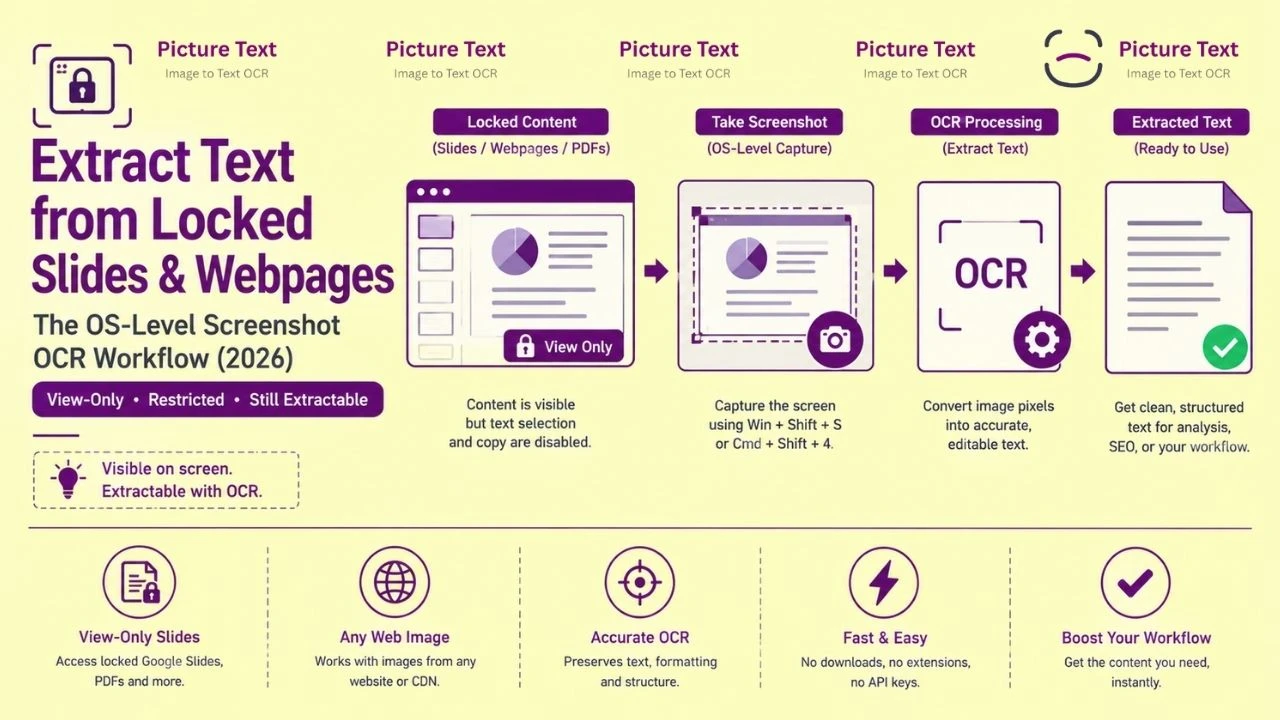
A US-based virtual assistant sits through a 90-minute Zoom webinar on Q3 sales strategy. He watches the presenter advance through 34 slides of market data, pricing benchmarks, and action items. None of which are distributed as a downloadable deck. The host has disabled participant screen recording. The chat export contains only text messages. The slides exist only as rendered pixels on the remote participant's display for the duration of the session. When the call ends, the content is gone. The VA's only preservation tool during the live session is a screenshot. OCR is the only extraction tool that converts that screenshot into searchable, copyable, editable text.
This scenario repeats itself across US remote work environments hundreds of thousands of times every business day. Locked Google Slides in view-only share mode, password-protected PDF presentations sent as read-only links, LinkedIn Learning course slides with copy disabled. Webinar platform content that never produces a recording, and Microsoft Teams meeting presentations where the file-sharing permissions expired when the meeting ended. The content was visible. The content was valuable. The only preservation path was a screen capture followed by accurate text extraction. This guide maps the exact capture and extraction workflow for each locked content class that US remote workers encounter daily.
Why Content Locking Fails at the Display Buffer Layer
Every content locking mechanism that US platforms deploy operates at the application layer, above the operating system's display buffer. Understanding this architectural reality explains why OS-level screenshot capture bypasses all of them without exception.
Content locking technologies operate by restricting application-layer behaviors: disabling the browser's native text selection API (user-select: none), intercepting Ctrl+C keyboard events and suppressing the copy action, blocking the browser's Print function via JavaScript, disabling right-click context menus, and in some cases using <canvas> rendering also to eliminate DOM text nodes entirely.
Every one of these restrictions is enforced by software running in the application layer.
The browser, the Zoom client, the PDF viewer, the webinar platform's JavaScript runtime. None of these applications have any access to, visibility into, or control over the OS display compositor. The Windows Desktop Window Manager (DWM) or macOS Quartz Compositor assembles the final pixel output from all running applications and writes it to the display buffer.
Win + Shift + S on Windows (Snipping Tool) and Cmd + Shift + 4 on macOS operate by reading directly from the display buffer, after the compositor has assembled the final rendered output. At the point of capture, every character visible on screen has already been fully rendered into pixel form by the GPU. No application layer restriction has any hook into this pixel readback operation.
The result:
Any text visible on screen, in a locked Google Slides view-only link, in a Zoom presentation, in a LinkedIn Learning slide, or in a read-only PDF viewer, is fully capturable as a pixel screenshot and fully extractable via OCR, regardless of the application layer locking mechanism applied to it.
Also Read: How to Digitize Scanned Books and eBooks with OCR
The Most Common US Remote Work Locking Scenario (Google Slides View-Only Links)
View-only Google Slides links are the dominant locked content format in US remote work environments. The standard sharing mode for internal presentations, client-facing decks, investor pitch materials, and webinar slide sets distributed through Google Drive. The viewer can see every slide. They cannot select text, cannot copy, cannot download as PDF (if download is disabled), and cannot extract content through any browser-native mechanism.
The Capture Protocol for Google Slides View-Only Links
Step 1:
Enter Presentation Mode: click the "Present" button in the top-right corner of the view-only Google Slides interface. This renders each slide at full browser window dimensions, maximizing the pixel area allocated to slide content and minimizing the Google Slides UI chrome that would otherwise occupy screen real estate in the editing view.
Step 2:
Set browser zoom to exactly 100%: press Ctrl+0 (Windows) or Cmd+0 (macOS) to reset zoom to 100% before capturing any slide. Zoom levels other than 100% apply additional resampling interpolation to the rendered text, introducing edge artifacts beyond the standard display anti-aliasing that reduce OCR accuracy on small body text.
Step 3:
Navigate to the target slide and wait for full render: Google Slides loads slide content progressively, images and custom fonts may take 1–3 seconds to fully render after slide navigation. Capturing before full render produces partially loaded slides where unrendered content regions return empty extraction.
Step 4:
Capture with Win + Shift + S (Windows) or Cmd + Shift + 4 (macOS): crop the selection to the slide content area only, excluding the browser chrome, the Google Slides navigation bar, the thumbnail panel on the left, and the presenter notes panel at the bottom. Each excluded UI element is a potential false character candidate zone.
Step 5:
Upload to PictureText.org: The captured slide renders text in Google's web font stack, typically Roboto, Open Sans, or Montserrat for modern presentation templates. PictureText's screenshot-to-text engine handles web-rendered sans-serif fonts with the ClearType fringe suppression and adaptive binarization that screen-rendered fonts require.
Zoom and Microsoft Teams Presentation Slides (Capturing During Live Sessions)
Live Zoom and Teams presentations introduce a capture challenge that static locked documents do not. The slide content is visible only during the presenter's screen-share. Only for the duration of their presentation, and advances at the presenter's pace, not the viewer's. Every slide is a timed extraction opportunity.
Frame Rate and Motion Blur: Why You Must Wait for Slide Stability
Zoom and Teams transmit the presenter's screen as a compressed video stream. Which typically at 15 frames per second for screen content, encoded with H.264 or VP9 at variable bitrate. During slide transitions, the video stream contains motion-blurred intermediate frames that are unsuitable for OCR. During stable slide display, the stream still encodes each frame with DCT block compression artifacts. It degrades character edge quality.
The stability wait protocol: after each slide transition, wait 2–3 seconds before capturing. This allows:
-
The Zoom/Teams video stream to stabilize from transition motion blur to static display encoding
-
The receiving client to buffer enough frames to display a stable, fully rendered slide
-
The H.264 codec's I-frame (keyframe) cycle to produce a clean full-frame reference encode rather than a P-frame (predicted frame) with accumulated compression artifacts
Captures taken within 1 second of a slide transition have a 3–5× higher character error rate than captures taken after a 2–3 second stability window.
Managing the Zoom UI Overlay During Capture
The Zoom client renders a participant video strip, a meeting control bar, and a reactions panel as overlays on top of the shared screen content. These overlays appear when the mouse cursor is within the Zoom window and disappear after 3–5 seconds of cursor inactivity.
The overlay elimination protocol: move the mouse cursor completely outside the Zoom window (to a second monitor, or to the Windows taskbar) before capturing each slide. After 3–5 seconds of cursor absence from the Zoom window. All UI overlays disappear, leaving the full slide content visible without obstruction. Execute the capture while the cursor remains outside the Zoom window to prevent the overlay from reappearing.
For slides with content near the bottom of the screen, where the Zoom control bar appears. This overlay elimination step is the difference between a complete extraction and one with the bottom 80 pixels of the slide occluded by the meeting controls.
Also Read: How to Extract Code Snippets from Video Tutorials Using OCR
LinkedIn Learning, Coursera, and US Online Course Platforms (Slide Extraction at Scale)
US online learning platforms, LinkedIn Learning, Coursera, Udemy, edX, Pluralsight, and their sector-specific equivalents, render course slides inside browser iframes with copy protection applied at multiple layers: user-select: none on all text elements, contextmenu event suppression, and in many cases Canvas-rendered slide content with no DOM text at all.
For US professionals pursuing certifications, technical upskilling, or continuing education, extracting course slide content for personal study notes is a legitimate use case, and a systematic one, typically involving 20–60 slides per course module.
The Batch Slide Extraction Workflow for Online Courses
Pre-session setup: configure the browser for maximum slide render quality before beginning the capture session:
-
Set browser zoom to 100% (Ctrl+0)
-
Enter browser full-screen mode (F11) to allocate maximum pixel area to the slide iframe
-
Disable browser extensions that overlay UI elements (ad blockers, grammar checkers, translation tools), these may inject DOM elements that appear over slide content in screenshots
-
Enable Do Not Disturb mode on the OS to suppress notification overlays during capture
Systematic capture cadence: advance through slides at a controlled pace, pause on each slide for 3 seconds to ensure full render, capture with Win + Shift + S / Cmd + Shift + 4 cropped to the slide content boundary, advance to the next slide. For a 40-slide module, this systematic cadence takes approximately 8–10 minutes of focused capture work.
File naming convention: save each captured slide screenshot with a sequential filename that preserves module and slide number context: Module03_Slide12.png, Module03_Slide13.png. This naming convention maps each extracted text file to its source slide position. It is essential for reconstructing reading order when processing the batch in PictureText.org.
Batch upload and extraction: upload the sequentially named PNG files to PictureText.org as a batch. The extracted text files maintain the sequential naming correspondence, allowing direct assembly of the full module's slide text in correct slide order without manual reordering.
Webinar Platforms: GoToWebinar, Zoom Webinar, ON24, and Hopin
US webinar platforms present a unique extraction challenge: the presenter controls slide advancement. The attendee has no replay control, and in many cases the webinar recording is either not made available to attendees or is delayed by 24–72 hours. For US virtual assistants, executive assistants, and business development professionals attending live webinars. Real-time slide capture is the only documentation path that preserves content before the session ends.
The Live Webinar Capture System: Key Slides vs. Full Deck Capture
Attempting to capture every slide in a fast-moving webinar produces stress and missed captures. The correct approach is selective key slide capture, developing a quick visual scanning judgment for which slides contain extractable, non-redundant text content worth OCR processing.
High-priority capture slides:
-
Any slide displaying data tables, pricing grids, benchmark numbers, or research statistics, content the presenter will not read aloud verbatim
-
Contact information, resource links, and follow-up action items, content that disappears when the slide advances
-
Framework diagrams with labeled components, where the labels contain the extractable value, not the visual layout
-
Competitive comparison charts, where extracted text produces structured competitive intelligence
Low-priority capture slides:
-
Title slides and section dividers, full text typically spoken by presenter and capturable from webinar captions
-
Slides with only a single large headline, content is simple enough to type manually from memory
-
Slides with only decorative imagery and minimal text, extraction return is low relative to capture effort
Webinar Caption Extraction: The Complementary Text Source
Most US webinar platforms (Zoom Webinar, GoToWebinar, Teams Live Event) generate live captions. They generate real-time speech-to-text transcription of the presenter's audio. These captions capture spoken content that complements the visual slide content, explanations, elaborations, and context that do not appear on the slides themselves.
The caption feed is not an OCR target, it is a text stream accessible through the platform's caption panel or post-webinar transcript download. The correct documentation architecture for US webinar content is: OCR for slide visual content + caption transcript for spoken elaboration, combining both text sources into a single structured note document that preserves both what was shown and what was said.
Also Read: How to Fix OCR Layout Errors | When Scanning Newspapers or Magazines
Password-Protected and Read-Only PDFs: The Display-Layer Bypass
US legal firms, financial advisors, healthcare organizations, and government agencies routinely distribute documents as password-protected PDFs with printing, copying, and editing permissions disabled. Adobe Acrobat and all major PDF viewers enforce these permission restrictions at the application layer, but render the full document content to the display buffer for viewing.
The display-layer bypass applies identically: the rendered PDF page is visible on screen as a complete pixel image. A full-page screenshot of the rendered PDF page, uploaded to PictureText.org, extracts all visible text from the page image, bypassing the PDF permission restrictions entirely because the OCR tool is reading from the pixel rendering, not from the PDF's internal structure.
PDF Page Capture Optimization for Clean OCR Output
PDF viewers render document pages at a zoom level that determines the effective pixel resolution of the captured screenshot, and therefore the OCR accuracy achievable from it.
Optimal PDF zoom settings for screenshot OCR:
|
PDF Viewer Zoom Level |
Effective Character Pixel Height (12pt text) |
OCR Reliability |
Recommendation |
|
50% zoom |
~6 px |
❌ Insufficient |
Never use for OCR capture |
|
75% zoom |
~8 px |
⚠️ Marginal |
Avoid for body text with diacritics |
|
100% zoom |
~11 px |
⚠️ Marginal on 96 DPI display |
Acceptable minimum |
|
125% zoom |
~14 px |
✅ Reliable |
Recommended standard |
|
150% zoom |
~17 px |
✅ Excellent |
Recommended for small print |
|
200% zoom |
~22 px |
✅ Excellent |
Required for footnotes and fine print |
Set the PDF viewer to 125–150% zoom before capturing any page for OCR. The 12pt body text that appears at 11 pixels cap-height at 100% zoom renders at 14–17 pixels at 125–150%, above the reliable recognition threshold for all standard character pairs including the most visually similar (l/1/I and 0/O).
For PDFs with footnotes, legal fine print, or financial disclosure text at 6–8pt, increase to 200% zoom before capture, ensuring even the smallest text on the page produces adequate character pixel heights for reliable extraction.
Also Read: How to Search Text in PDF (Beginner Guide - Working Methods for 2026)
Microsoft Teams and SharePoint: Expired Share Links and Meeting Deck Recovery
US enterprise Microsoft 365 environments routinely produce a specific locked content scenario: a presentation shared during a Teams meeting via SharePoint link expires after the meeting ends, typically 24–72 hours for externally shared links, or immediately upon meeting closure for links shared only within the meeting chat. The deck was visible during the meeting. The link no longer works. The content is accessible only to attendees who captured it during the session.
For US IT administrators, project managers, and executive assistants who missed capturing specific slides during a Teams meeting, there is one recovery path that does not require re-requesting the file from the presenter: Teams meeting recording with slide frame extraction.
If the Teams meeting was recorded to Microsoft Stream or SharePoint (the default recording destination in US enterprise M365 tenants), the recording is typically available to meeting participants for 60–120 days. Advance the recording to the timestamp corresponding to the desired slide, pause on the clearest static frame, and capture with the OS snipping tool. Upload the captured frame to PictureText.org, applying the video frame preprocessing protocol from Article 8 if the recording was encoded at 720p or below.
Slack Canvas and Notion Embeds: The View-Only Workspace Content Problem
US knowledge workers increasingly encounter locked content embedded directly in workspace tools, Slack Canvas documents with edit permissions restricted to specific users, Notion pages shared in view-only mode, Confluence pages with export permissions disabled, and Airtable views with field-level access restrictions.
These platforms apply application-layer copy restrictions through their web rendering, typically CSS user-select: none combined with JavaScript clipboard interception. The display-layer bypass applies to all of them identically.
The workspace content capture checklist:
-
Collapse all sidebars and navigation panels before capturing, Slack's sidebar, Notion's page navigation, and Confluence's space browser all consume screen real estate that reduces the available area for the target content
-
Scroll to position the target content section entirely within the visible viewport before capturing, never capture content that requires scrolling to see fully, as the invisible portion will be absent from the screenshot
-
Use the browser's "Reader Mode" where available (Firefox Reader View, Edge Immersive Reader) to strip navigation chrome and render only the document content before capturing, producing a cleaner, higher-contrast screenshot with more content visible per capture
The US Legal Context (Content Ethics and Appropriate Use)
US remote workers should understand the legal and ethical context of extracting text from locked web content before deploying these techniques in professional settings.
Legitimate use cases that are clearly appropriate under US law and professional ethics:
-
Extracting text from presentations you attended and have a right to access the content of
-
Capturing course slide content from platforms you have paid for access to, for personal study notes
-
Documenting webinar content for internal business use within your organization
-
Recovering content from expired share links for presentations you were the intended recipient of
-
Extracting text from your own organization's documents for accessibility or workflow purposes
Use cases requiring caution:
-
Extracting content for redistribution or republication, potentially triggers copyright law (17 U.S.C. § 106) depending on the content's copyright status and the nature of redistribution
-
Extracting content from platforms where the Terms of Service explicitly prohibit automated or systematic content extraction, review platform ToS before systematic batch extraction
-
Extracting content that constitutes trade secrets or confidential business information from parties you are not authorized to access, potentially triggers the Defend Trade Secrets Act (18 U.S.C. § 1836) depending on context
This guide addresses legitimate personal documentation and workflow use cases. US professionals should consult with legal counsel before deploying screenshot OCR in any context involving confidential third-party information or systematic competitive intelligence extraction at scale.
Root Cause Analysis: Step-by-Step Troubleshooting Checklist
Error: Google Slides view-only capture extracts with text from Google UI chrome mixed into the slide content
Root Cause: The screenshot crop selection included the Google Slides navigation bar, slide thumbnail panel, or presenter notes region, all of which contain text that the OCR zone segmentation algorithm processes alongside the slide content.
Fix: Enter Presentation Mode (click "Present") before capturing, this hides all Google Slides UI chrome and renders the slide at full browser window dimensions with no surrounding UI elements. Crop the Snipping Tool selection to the slide's visible boundary within the presentation frame.
Error: Zoom webinar slide capture contains the participant video strip overlaid on the slide content
Root Cause: The cursor was within the Zoom window during capture, keeping the participant video overlay and meeting controls visible and overlapping the lower portion of the slide.
Fix: Move the cursor entirely outside the Zoom window (to the Windows taskbar, a second monitor, or the desktop). Wait 3–5 seconds for all Zoom UI overlays to auto-hide. Execute the capture while the cursor remains outside the Zoom window boundary.
Error: LinkedIn Learning slide extraction returns very low character count, most slide text is missing
Root Cause: The LinkedIn Learning slide renderer uses Canvas-based rendering for slide content, writing character pixels directly to an HTML5 Canvas element with no corresponding DOM text nodes. The browser's text selection API finds no text in the Canvas element. This does not affect screenshot OCR. The pixels are rendered correctly. But it confirms that browser-native copy methods will never work regardless of the platform's permission settings.
Fix: This is not an OCR failure, it is a confirmation that the Canvas rendering path is working correctly for screenshot extraction. Ensure the slide is fully rendered (wait 2–3 seconds after navigation), capture at 100% browser zoom with full-screen mode enabled, and upload to PictureText.org. The pixel data in the Canvas element is fully extractable by screenshot OCR regardless of the Canvas rendering path.
Error: Read-only PDF screenshot extraction has correct characters but wrong reading order, footnotes appear before body text
Root Cause: The PDF was captured at a zoom level where the full page, including body text and footnotes, was visible simultaneously. The OCR zone segmentation algorithm assigned footnote regions to the same reading order as body text, sequencing them by y-coordinate position rather than by document structure hierarchy.
Fix: Increase PDF viewer zoom to 150–200% so the full page no longer fits in a single screenshot. Capture the body text area and footnote area as separate screenshots. Process each separately and concatenate the extracted text in the correct reading order (body text first, footnotes second).
Error: Teams meeting slide capture from recording has blurry text, characters are unreadable after extraction
Root Cause: The Teams recording was encoded at 720p or below, and the video compression codec applied DCT block artifacts to the character edges at the frame quality level determined by the recording's bitrate allocation. Blurry character edges produce high confusion-pair substitution rates.
Fix: Apply the video frame preprocessing protocol: extract the frame at the highest available recording quality (switch to 1080p playback if available), apply a bilateral deblocking filter (sigma_spatial=2.0, sigma_intensity=15) to reduce DCT ringing artifacts before uploading to PictureText.org. If the recording is only available at 720p, increase font size on the captured frame using upscaling with a super-resolution algorithm (available in tools like Topaz Gigapixel or waifu2x) before binarization.
Actionable Workflow Blueprint
Execute this sequence for clean, complete text extraction from any locked web content, webinar slide, or remote presentation in a US remote work context:
-
Identify the locking mechanism before selecting your capture approach. Is the content in a view-only Google Slides link (static, capturable at leisure)? A live Zoom presentation (timed, requires real-time capture)? A read-only PDF (static, capturable at optimal zoom)? A LinkedIn Learning course (static Canvas-rendered, batch-capturable)? Each class has a slightly different capture optimization.
-
Configure your display for maximum text pixel quality before beginning any capture session: set browser zoom to 100% (Ctrl+0), enter full-screen mode (F11) where applicable, enable Do Not Disturb to suppress notification overlays, and disable overlapping browser extensions.
-
For live presentations (Zoom, Teams): move cursor outside the application window, wait for UI overlays to disappear, wait 2–3 seconds after each slide transition for stream stability, then capture. Prioritize key slides containing data tables, pricing, statistics, and contact information over decorative slides.
-
For static locked content (Google Slides, read-only PDFs): enter Presentation Mode or set PDF zoom to 125–150%, capture each page with Win + Shift + S / Cmd + Shift + 4 cropped to the content boundary only, excluding all application chrome.
-
Upload cropped PNG screenshots to PictureText.org for browser-local OCR processing. The browser-local architecture means your captured slide content, which may include confidential meeting materials, proprietary pricing data, or internal strategy presentations, is processed entirely within your browser session and never transmitted to any external server.
-
Assemble extracted text in reading order using the sequential file naming convention (Module03_Slide12, Module03_Slide13) to maintain structural context. Combine OCR-extracted slide text with webinar caption transcripts where available, producing a complete documentation artifact that preserves both visual content and spoken elaboration.
-
Validate extraction completeness by comparing the extracted word count against a visual estimate from the source screenshots. For slides with data tables and numeric content, verify all extracted numbers against the source screenshot before using them in any business deliverable, numeric confusion pairs (0/O, l/1) are the highest-risk extraction error class in presentation slide content.
For US virtual assistants, executive assistants, project managers, and remote knowledge workers who routinely attend webinars, training sessions, and client presentations. Where slide content is not distributed. PictureText's browser-local screenshot OCR processes every captured slide image without transmitting your meeting content to any external server. It keeps your organization's confidential presentation material within your local browser session throughout the extraction process. Start your locked content extraction workflow at picturetext.org and document every slide, every data point, and every action item from every meeting where the deck never gets shared.