
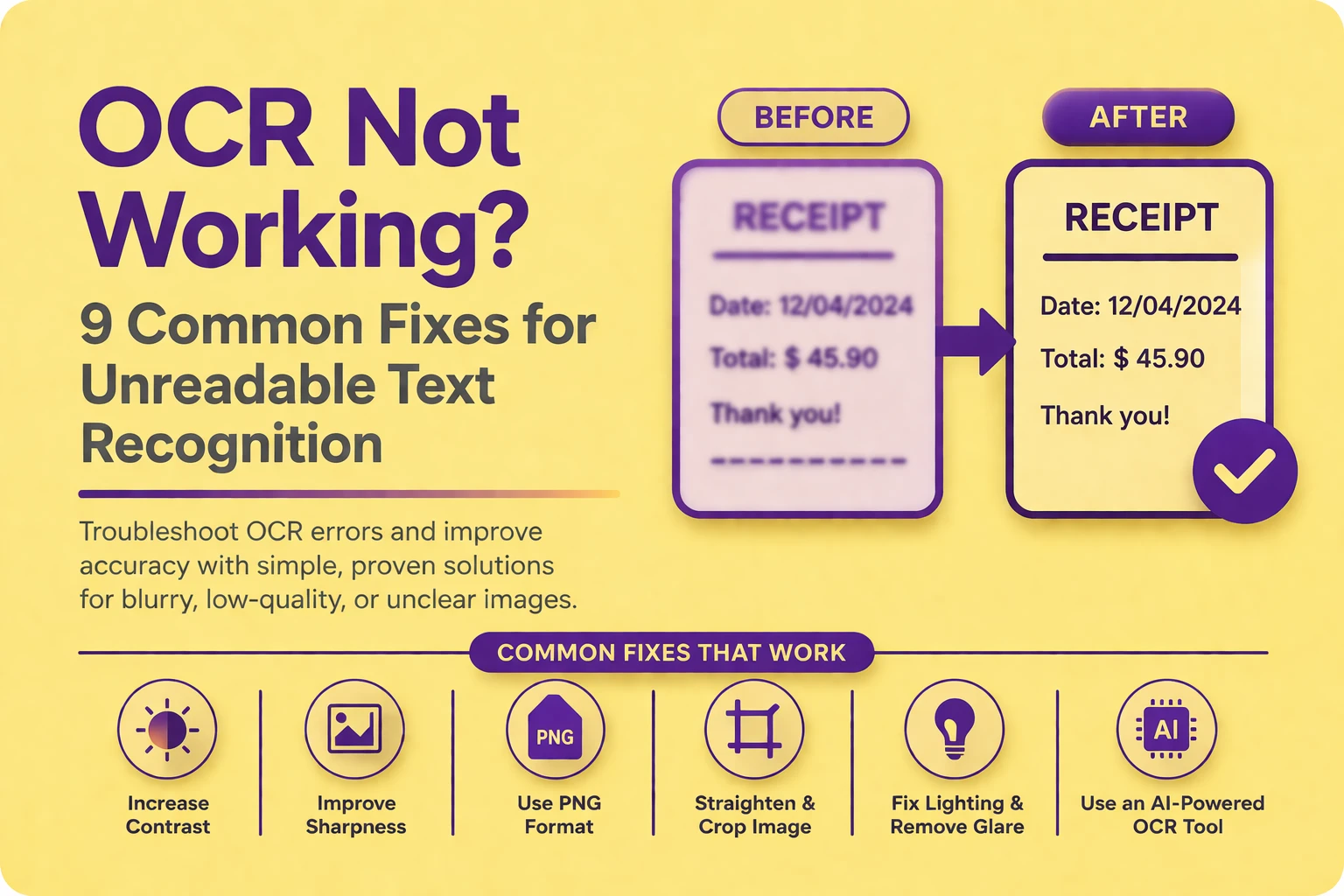
OCR tools are designed to simplify the process of converting images into editable text. But when the output is inaccurate, incomplete, or completely unreadable, it can feel like the tool is broken.
In reality, OCR failures are rarely random. Most issues come from how the text appears in the image rather than the OCR system itself. Even advanced tools depend heavily on image clarity, structure, and consistency.
Understanding what causes OCR to fail is the first step toward fixing it. Once you identify the issue, small adjustments can often make a significant difference in accuracy.
Quick Answer
If your OCR is not working, it is usually due to:
-
Blurry or low-resolution images
-
Weak contrast between text and background
-
Compression artifacts from JPG files
-
Text that is too small or distorted
-
Lighting issues such as shadows or glare
-
Using an outdated or basic OCR tool
Improving these factors can dramatically increase recognition accuracy.
Why OCR Fails? (Understanding the Root Problem)
OCR systems do not “understand” text in the way humans do. Instead, they analyze visual patterns — the shapes, edges, spacing, and alignment that form characters.
When these patterns are clear and well-defined, recognition is accurate. But when they are distorted, faded, or inconsistent, the system begins to guess — which leads to errors.
For example, a slightly blurred “S” may be interpreted as “5,” or a poorly lit “E” may be partially missed. These errors are not random; they are the result of missing or unclear visual information.
This is why improving the input image often has a bigger impact than changing the OCR tool itself.
1. The Image Is Too Blurry
Blurry images reduce the sharpness of text edges, which are critical for OCR detection. When edges are soft, characters lose their distinct shapes and begin to blend into each other.
Even mild blur can cause OCR systems to misinterpret similar-looking characters such as “O” and “0” or “l” and “1.” This becomes more noticeable in smaller fonts or tightly spaced text.
Blurriness often comes from:
-
Camera movement while capturing the image
-
Low-quality screenshots
-
Repeated compression or resizing
What You Can Do
Improving edge clarity is key. Applying light sharpening and increasing contrast can restore enough structure for OCR systems to recognize characters more accurately.
2. Low Resolution or Small Text
Resolution determines how much detail is available in an image. When resolution is too low, characters may appear pixelated or lack enough detail for proper recognition.
Small text presents a similar challenge. If letters occupy only a few pixels, the OCR engine cannot reliably distinguish their shapes.
This issue is common in:
-
Cropped images
-
Zoomed-in screenshots
-
Low-quality scans
Fix
Capture or use higher-resolution images whenever possible. If you’re taking a screenshot, zoom in before capturing rather than enlarging afterward, as upscaling does not add real detail.
3. Poor Contrast Between Text and Background
Contrast is one of the most important factors in OCR accuracy. If text does not stand out clearly from the background, the system struggles to detect where characters begin and end.
Low contrast often occurs in:
-
Faded printed documents
-
Light-colored text on light backgrounds
-
Dark images with insufficient brightness
When contrast is weak, OCR engines may miss characters entirely or merge them into the background.
Fix
Adjust contrast and brightness to create a stronger separation between text and background. Converting the image to grayscale can also help simplify the visual structure.
4. Wrong Image Format (JPG Compression Issues)
JPEG compression reduces file size by removing image details, especially around edges. While this is useful for storage, it negatively affects OCR accuracy.
Compression introduces artifacts, small distortions that can interfere with how text is interpreted. These artifacts are often invisible to the human eye but can confuse OCR systems.
Fix
Use PNG format whenever possible. PNG preserves image quality without compression, making it more suitable for text recognition tasks.
5. Uneven Lighting, Shadows, or Glare
Lighting plays a major role in how text appears in an image. Uneven lighting can create shadows that obscure parts of letters or glare that washes out entire sections.
These distortions break the continuity of characters, making it difficult for OCR systems to reconstruct them accurately.
Common issues include:
-
Overhead lighting creating shadows
-
Flash reflections on glossy paper
-
Dim lighting reducing visibility
Fix
Capture images in evenly lit environments. Avoid direct reflections and ensure that the entire text area is clearly visible.
6. Text Is Skewed or Not Properly Aligned
OCR systems work best when text is horizontally aligned. When text is tilted or skewed, character orientation becomes inconsistent, which can lead to recognition errors.
Even slight angles can reduce accuracy, especially in documents with structured layouts like tables or forms.
Fix
Use basic editing tools to straighten the image before uploading. Many tools offer automatic alignment correction, which can significantly improve results.
7. Handwriting or Unusual Fonts
Handwriting and stylized fonts introduce variability that traditional OCR systems struggle to handle. Unlike printed text, handwriting lacks consistent shapes and spacing.
Decorative fonts can also create ambiguity, especially when characters resemble each other.
Fix
Use AI-based OCR tools that are trained on diverse datasets, including handwriting and complex fonts. These tools are better equipped to handle variability.
👉You can also use our dedicated handwriting to text tool.
8. Background Noise or Clutter
Busy backgrounds, textures, or patterns can interfere with text detection. OCR systems may mistakenly interpret background elements as characters, leading to incorrect output.
This is especially common in:
-
Images with patterned surfaces
-
Documents placed on textured backgrounds
-
Screenshots with overlapping elements
Fix
Crop the image to focus only on the text area. Removing unnecessary background elements helps the OCR engine concentrate on relevant content.
9. Using a Low-Quality OCR Tool
Not all OCR tools offer the same level of performance. Basic or outdated tools rely on rigid recognition methods that perform poorly on real-world images.
Modern OCR systems use machine learning to adapt to variations in text, layout, and image quality.
Fix
Choose a reliable, AI-powered OCR tool that can handle imperfect images and diverse text formats.
Common Mistakes That Make OCR Worse
Many users unintentionally reduce OCR accuracy by overlooking simple details.
For example, repeatedly saving an image as JPG can degrade quality over time. Cropping text unevenly can remove important parts of characters. Using compressed images from messaging apps can introduce artifacts.
These small issues may seem insignificant individually, but together they can significantly impact results.
Being mindful of how images are prepared and handled can often improve OCR performance without requiring additional tools.
When OCR Still Doesn’t Work
There are situations where OCR cannot produce accurate results, regardless of adjustments. This usually happens when the image lacks sufficient detail, such as in heavily pixelated or extremely blurred images.
In these cases, the best solution is to improve the source image rather than relying on post-processing.
Retaking the photo, using a scanning app, or accessing the original digital file can provide the clarity needed for accurate recognition.
Final Thoughts
When OCR doesn’t work, the problem is usually not the technology itself but the quality of the input. OCR systems depend on clear, well-defined text, and even small distortions can lead to noticeable errors.
The most effective approach is to focus on improving image quality first. Once the text is clear and well-structured, even basic OCR tools can produce accurate results.
By understanding how OCR interprets images and applying simple fixes, you can consistently turn problematic inputs into clean, usable text.