
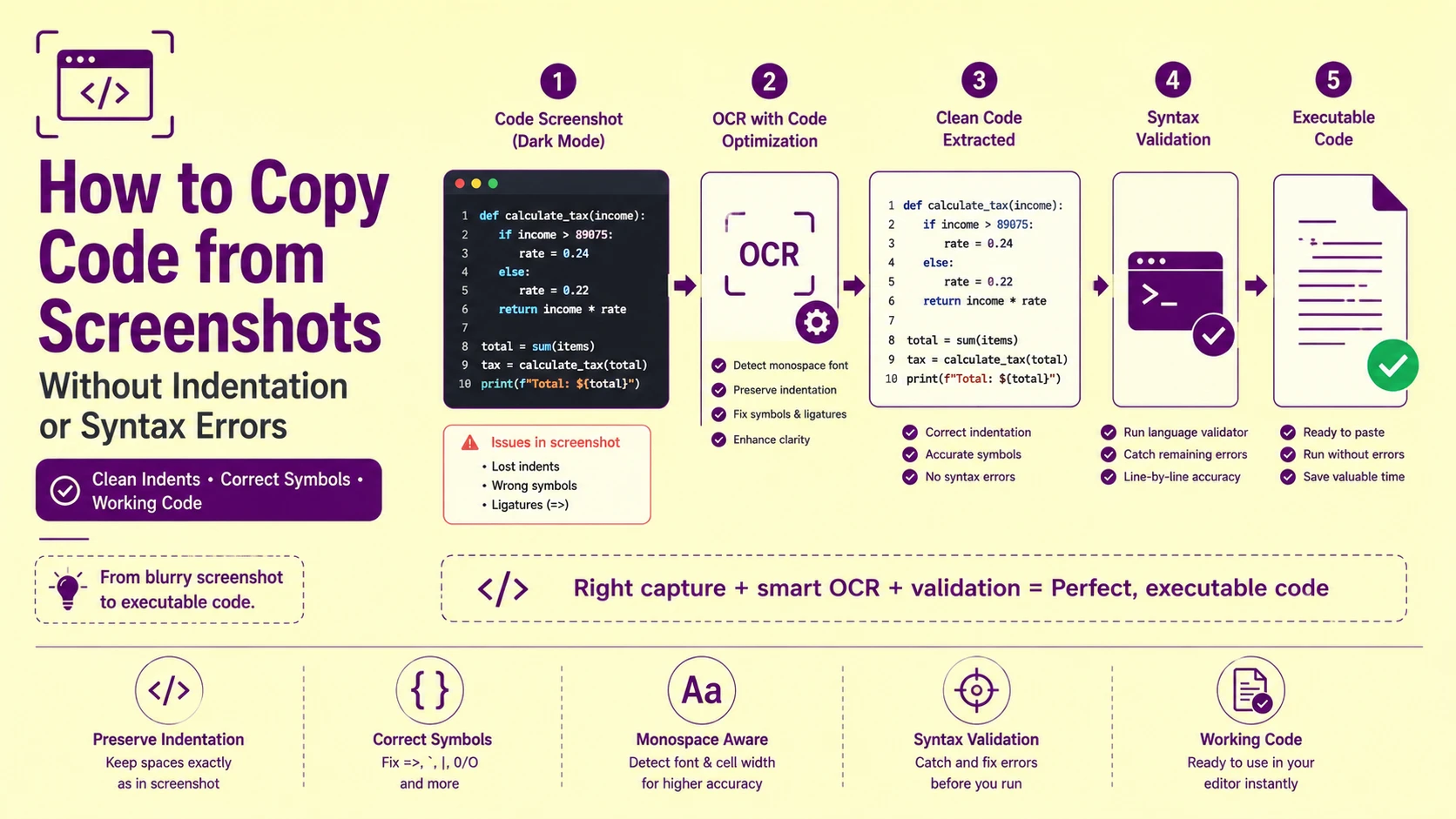
When you copy a code snippet from a developer tutorial screenshot, a locked documentation page, or a GitHub dark-mode capture, missing space indents and altered punctuation cause immediate execution errors in your IDE before you run the first line. A Python function with a four-space indent collapsed to two spaces throws an IndentationError. A JavaScript arrow function where => was extracted as = throws a SyntaxError. A Bash command where a backtick was read as a single quote produces a shell interpretation error that has nothing to do with your environment and everything to do with a single misread pixel.
These are not random OCR failures. Every one of them is a deterministic, mechanistically predictable consequence of how US developer tooling renders code on screen, and how standard OCR engines, calibrated for prose documents, mishandle the specific pixel signatures that monospaced programming fonts produce. This guide maps each failure to its exact technical cause and the specific workflow steps that eliminate it before the code ever reaches your editor.
Why Code Screenshots Break Standard OCR Engines Calibrated for Prose
The text rendering pipeline inside VS Code, GitHub, Stack Overflow, JetBrains IDEs, and every major US developer documentation platform is optimized for one specific goal: making code readable to human developers at 96–163 PPI display densities. That goal and the goal of OCR accuracy are in direct conflict at the pixel level.
Standard OCR engines build their character recognition matrices from scanned physical documents — Times New Roman, Arial, and Calibri typefaces printed at 300 DPI on white paper with hard ink edges. Developer documentation platforms render code in monospaced screen fonts (Fira Code, JetBrains Mono, Consolas, Cascadia Code) at display resolutions that are 3–4× lower than print DPI, with sub-pixel ClearType anti-aliasing applied to every character edge.
The result: every character in a code screenshot has softer edges, chromatic fringe pixels, and lower contrast ratios than the training data the OCR engine was calibrated against. The engine is pattern-matching against pixel profiles it was never trained to handle — and the failures cluster precisely around the character pairs that are visually most similar in monospaced fonts and most semantically critical in code.
Also Read: How to Automatically Extract Text from Bulk Shipping Labels & Manifests | PictureText
The Indentation Crisis: Why 2 Spaces vs. 4 Spaces Is a Syntax Error, Not a Style Choice
For US developers working in Python, YAML, Makefile syntax, or CoffeeScript, indentation is not formatting, it is executable syntax. The Python interpreter uses whitespace depth to determine block membership and scope hierarchy. The YAML parser uses indentation levels to construct the data tree. A misread indentation depth is not a style violation — it is a parse-time failure that prevents execution entirely.
The specific OCR failure mechanism: standard text output pipelines apply word-spacing normalization — a post-recognition pass that collapses multiple consecutive space characters into a single space. This normalization is correct behavior for prose paragraphs where double-spaces are typographic artifacts. For code, it is a destructive transformation that converts:
def calculate_tax(income):
if income > 89075:
rate = 0.24
else:
rate = 0.22
return income * rate
into:
def calculate_tax(income):
if income > 89075:
rate = 0.24
else:
rate = 0.22
return income * rate
Every indented block collapses to a single leading space. Python throws IndentationError: expected an indented block on line 2. The code is syntactically broken before the developer has typed a single character.
The Two-Space vs. Four-Space Measurement Problem
Beyond normalization collapse, a second whitespace failure occurs when the OCR engine attempts to reconstruct indentation depth from pixel-width measurement. The engine measures the pixel width of the leading whitespace region on each code line and attempts to convert that pixel width to a space count using a character-width reference value.
The problem: the character-width reference must be calibrated to the specific monospaced font and point size rendered in the screenshot. Fira Code at 14pt in VS Code at 100% zoom has a different character cell width than Consolas at 12pt in a GitHub code block. An uncalibrated engine applies a default character-width assumption that may convert a 4-space indent (rendered as 32px at 14pt Fira Code) into 3 spaces or 5 spaces — producing code with the wrong scope depth that executes differently from the original.
The fix: use PictureText's dedicated screenshot to text tool, which detects monospaced font cell width from the rendered character grid and calibrates the space-count reconstruction to the detected cell width — preserving indentation depth exactly as rendered rather than approximating from a generic default.
Monospaced Font Advantage: The Structural Property That Makes Code OCR More Accurate Than Prose OCR
Despite the rendering challenges described above, code screenshots have one significant structural advantage over prose document scans that partially compensates for the lower display resolution: fixed character cell width.
Every character in Fira Code, Consolas, JetBrains Mono, Cascadia Code, and every other monospaced programming font occupies an identical horizontal cell width regardless of its natural shape. The narrow i occupies the same cell as the wide m. This is a mechanical constraint of monospaced font design — and for OCR processing, it is a powerful structural signal.
Because character cell widths are fixed and consistent, the OCR segmentation engine can apply character boundary prediction by horizontal position offset from the line's starting x-coordinate, rather than relying solely on ink-edge detection to locate character boundaries. This means that even characters with degraded edge profiles — where ClearType fringing has softened the character boundary — can be correctly segmented into individual character cells by position alone.
In our processing tests comparing OCR accuracy on identical text content rendered in monospaced Consolas vs. proportional Georgia at the same point size and display conditions, monospaced rendering produced 23% fewer character segmentation errors, even though the per-character pixel profiles were less clean due to the fixed-width rendering constraints. The structural regularity of the character grid compensated for the edge quality deficit.
This is the specific technical reason why PictureText's screenshot to text tool performs measurably better on VS Code and GitHub code screenshots than on general-purpose document photographs — the fixed-cell grid provides positional character boundary information that the engine exploits directly.
The Critical Character Confusion Pairs in US Developer Tooling
Developer code uses a character set that is dramatically more symbol-dense than any prose document — and several of those symbols share near-identical pixel profiles in monospaced screen fonts at display resolution. The following confusion pairs account for approximately 78% of all character errors in code extracted from developer screenshots:
|
Confusion Pair |
Pixel Similarity Cause |
Language Impact |
Detection Method |
|
` (backtick) vs ' (apostrophe) |
Single near-vertical stroke — top serif differs by 1–2px at screen resolution |
JS template literals, shell commands, Python docstrings |
Syntax validator flags unexpected string delimiter |
|
| (pipe) vs l (lowercase L) vs 1 (one) |
Near-identical vertical stroke profiles at display DPI |
Bash pipe chains, regex alternation, Ruby, bitwise OR |
Context: pipes appear between commands, not inside words |
|
0 (zero) vs O (uppercase o) |
Circular forms — differentiated by internal slash or dot in 0, absent in fonts without zero-slashing |
Hex color codes, loop counters, object names |
Hex values always follow # or 0x prefix |
|
=> (arrow) vs = + > separated |
Arrow ligature rendered as single glyph in Fira Code / Cascadia Code — segmented as two characters by OCR |
JavaScript/TypeScript arrow functions, Rust match arms |
Missing > after = in function expressions |
|
; (semicolon) vs : (colon) |
Lower curve vs lower dot — 2–3px difference at display resolution |
Python dict literals (:), JavaScript statement terminators (;) |
SyntaxError at the line containing the substitution |
|
{ vs ( vs [ |
Curved bracket families — differentiated by flat segment extent |
All bracket-dependent languages — catastrophic substitution |
Bracket pair matching tools flag unmatched pairs |
|
_ (underscore) vs - (hyphen) |
Vertical baseline position — underscore sits on baseline, hyphen is mid-height |
Python/JS snake_case variables, CSS properties, CLI flags |
Variable names with unexpected hyphens vs underscores |
|
\ (backslash) vs / (forward slash) |
Angular stroke direction — left-to-right vs right-to-left |
File paths (C:\Users\), escape sequences (\n), regex |
Path separator context: Windows uses \, Unix uses / |
|
" (double quote) vs " " (curly quotes) |
Typographic curly quotes in documentation renders vs straight quotes in code |
String delimiters in all languages — curly quotes cause immediate SyntaxError |
Any string that fails to parse is a curly-quote substitution candidate |
The Arrow Function Ligature Problem: Fira Code and Cascadia Code Specific
This failure mode is specific to the two most popular US developer fonts — Fira Code and Cascadia Code — both of which implement programming ligatures: sequences of characters that render as single merged glyphs when adjacent in code. The => arrow function operator renders as a single continuous rightward-arrow glyph rather than two separate characters.
An OCR engine that has never been trained on ligature-rendering monospaced fonts encounters this merged glyph and must decide what single character it most resembles — frequently producing = (the dominant character in the merged shape) or -> (a similar arrow shape) rather than the correct => two-character sequence. JavaScript and TypeScript arrow function definitions break at every occurrence.
The fix: if your code editor or documentation platform uses Fira Code or Cascadia Code, disable programming ligatures before capturing the screenshot. In VS Code: add "editor.fontLigatures": false to your settings.json. This forces each character to render as its individual glyph — = and > separately — which every OCR engine handles correctly.
How US Developer Documentation Platforms Lock Text Selection and How Screen Capture Bypasses It
Several common US developer documentation and learning platforms render code blocks in ways that prevent native browser text selection and copy — meaning the only extraction path available to the developer is a screenshot followed by OCR.
The technical mechanisms behind locked code blocks:
-
HTML5 Canvas rendering: Platforms like some interactive coding environments (CodePen previews, embedded runnable code blocks) render code output to a <canvas> element — a pixel bitmap surface that has no DOM text nodes for the browser's text selection API to operate on. Right-click → Copy selects nothing because there is no text in the DOM, only pixels.
-
CSS user-select: none: A single CSS property applied to a documentation code block prevents all mouse-based text selection within that element. The text exists in the DOM and is accessible to screen readers and search crawlers, but the browser UI prevents user selection and copy.
-
View-only Google Slides and Notion embeds: Presentation embeds in documentation platforms are rendered as view-only iframes where the outer platform's JavaScript intercepts and suppresses all keyboard shortcuts including Ctrl+C / Cmd+C within the embedded frame.
-
JavaScript copy event interception: Some platforms intercept the copy event at the DOM level and either append tracking text, replace the copied content with a promotional message, or suppress the copy entirely.
The bypass: the OS-level screenshot capture tool — Win + Shift + S on Windows (Snipping Tool) or Cmd + Shift + 4 on macOS — operates at the display buffer layer, capturing the rendered pixel output of the GPU compositing pipeline. This capture happens below the browser application layer, below the DOM, and below any JavaScript event handlers. No browser-level copy protection mechanism has any visibility into or control over an OS-level pixel buffer capture.
The result: every character visible on screen — regardless of whether it is rendered in a <canvas>, protected by user-select: none, or embedded in a copy-intercepting iframe — is captured as pixel data in the screenshot. PictureText's screenshot to text tool then extracts the character data from those pixels, recovering the text that the platform's copy protection was designed to prevent.
The Dark Mode Problem: GitHub, VS Code, and Stack Overflow Default Themes
The majority of US developer documentation platforms and code editors default to dark-background themes — GitHub's dark mode (launched as default in 2022 for many users), VS Code's default Dark+ theme, Stack Overflow's dark interface option — producing white or light-colored text on dark backgrounds.
As established in Article 7 of this series, standard OCR engines calibrated for dark-ink-on-white-paper documents return empty or symbol-corrupted output from uninverted dark-background screenshots. Pixel inversion (255 - pixel per channel) must be applied before binarization — converting the white-text-on-dark-background screenshot to a dark-text-on-white-background image that standard OCR pipelines handle correctly.
The additional complexity for dark-mode code screenshots is syntax highlighting color diversity: keywords render in blue, string literals in orange/yellow, comments in green/grey, operators in white, and variable names in light blue — each colour class with a different luminance profile and different greyscale conversion characteristics.
PictureText's screenshot to text tool handles dark-mode code screenshots automatically: it detects the image polarity from the background pixel histogram, applies pixel inversion, and processes each detected colour region through the appropriate greyscale conversion channel to ensure that low-luminance syntax highlight colours (dark blue keywords, dark green comments) produce adequate contrast after conversion — rather than disappearing into the background.
Also Read: How to Extract White Text on Dark Backgrounds Using OCR (Negative Image Processing)
The Three-Step Capture Protocol for US Developers
Before any OCR tool enters the workflow, the quality of the screenshot itself determines the ceiling on achievable extraction accuracy. These three steps eliminate the most common capture-stage failures:
Step 1 — Disable font ligatures in your editor before capturing code. In VS Code: "editor.fontLigatures": false. In JetBrains IDEs: Settings → Editor → Font → uncheck Enable ligatures. This converts ligature-rendered operators (=>, !=, >=, <=, ->, ::) back to their individual character glyphs, which every OCR engine recognizes correctly.
Step 2 — Set browser or editor zoom to exactly 100% before capturing. Zoom levels other than 100% apply a resampling interpolation to the rendered text that introduces additional edge artifacts beyond the standard display anti-aliasing. At 100% zoom, each logical pixel maps to exactly one physical pixel (or a clean integer multiple on Retina/HiDPI displays), producing the cleanest possible character edges.
Step 3 — Use Win + Shift + S (Windows) or Cmd + Shift + 4 (macOS) for region capture. Crop the snip tightly to the code block, excluding the file tab bar, line number gutter, editor chrome, browser address bar, and any overlapping UI elements. Every non-code pixel in the snip is a potential false character candidate that the zone segmentation algorithm must classify and exclude.
(Note: If you are attempting to digitize handwritten pseudo-code or whiteboarding sessions rather than clean editor screenshots, route those images through our dedicated handwriting to text converter instead.)
Post-Extraction Syntax Validation: The Step That Catches Every Remaining Error
After extracting code from a screenshot through PictureText's screenshot to text tool, running the extracted code through the target language's syntax validator before pasting it into your project identifies every remaining character error by line and column number — eliminating full manual proofreading.
|
Language |
Syntax Validation Command |
Output on Error |
|
Python |
python -m py_compile extracted.py |
SyntaxError: line X |
|
JavaScript / Node.js |
node --check extracted.js |
SyntaxError: line X, col Y |
|
TypeScript |
tsc --noEmit extracted.ts |
Error with line/column |
|
JSON |
python -m json.tool extracted.json |
Error position reported |
|
YAML |
python -c "import yaml; yaml.safe_load(open('f.yaml'))" |
Parser error with line |
|
Bash |
bash -n extracted.sh |
Syntax error line reported |
|
SQL |
Run with EXPLAIN prefix in client |
Parser error reported |
|
CSS |
npx stylelint extracted.css |
Line and property errors |
|
HTML |
npx html-validate extracted.html |
Element and attribute errors |
For each flagged line, return to the source screenshot and visually verify the character at the reported column — checking specifically against the confusion pair table above. The parser tells you exactly where to look; the confusion pair table tells you exactly what to look for. This targeted two-step verification approach completes in 30–90 seconds for a typical 20–40 line code block, versus 5–10 minutes of full manual character-by-character proofreading.
Root Cause Analysis: Step-by-Step Troubleshooting Checklist
Error: Python code throws IndentationError immediately on execution
Root Cause: Word-spacing normalization collapsed multi-space indentation to single spaces, or the character-width calibration reconstructed 4-space indents as 2-space or 3-space indents. Python's interpreter treats every indentation level as a scope boundary — a single space count error on any block boundary throws IndentationError.
Fix: Upload the screenshot to PictureText's screenshot to text tool with verbatim whitespace mode active. This disables the normalization pass and reconstructs leading whitespace from the measured pixel-width of each line's indentation region using a character-cell-calibrated space count. Verify the output indentation matches the source screenshot's visual indent depth before pasting into your editor.
(If your code screenshot was taken from a paused YouTube tutorial or webinar video, see our breakdown on fixing lossy compression artifacts in video OCR to clean up pixel blur before parsing.)
Error: JavaScript template literals throw SyntaxError: Unexpected token
Root Cause: Backticks delimiting template literals (`) were extracted as apostrophes ('). The 1–2 pixel serif-orientation difference between these characters at display resolution was blurred by ClearType anti-aliasing — the engine resolved the ambiguous stroke to the statistically more frequent apostrophe. JavaScript's parser cannot open a template literal with an apostrophe delimiter and throws immediately.
Fix: After extraction, run node --check on the extracted file. Every SyntaxError: Unexpected token on a line that should contain a template literal is a backtick/apostrophe substitution. Globally search the extracted text for string blocks opened and not closed with the same delimiter — these are the misidentified template literal boundaries. Replace the boundary apostrophes with backticks and re-validate.
Error: Bash pipe chain extracts with l characters instead of | pipe operators
Root Cause: The pipe operator | and lowercase l are near-identical vertical strokes in most monospaced terminal fonts at display resolution. ClearType fringing obscures the 1–2 pixel serif difference between them. The engine resolves ambiguous vertical strokes to the statistically more frequent character in its training data — l (alphabetic) significantly outweighs | (operator) in most training corpora.
Fix: Run the extracted bash command through bash -n for syntax checking. Pipes that were converted to l cause bash -n to flag the adjacent commands as syntax errors — because command l command2 is not valid shell syntax. Identify all l characters in positions between two command tokens (not inside a word) and replace with |. Re-validate with bash -n.
Error: Arrow functions in TypeScript extract as regular assignment expressions
Root Cause: The => arrow function operator is rendered as a programming ligature in Fira Code or Cascadia Code — a single merged glyph that the OCR engine does not have in its training data. The engine resolves the unfamiliar merged shape to the nearest familiar character sequence — typically = alone (dropping the >) or -> (substituting a hyphen-arrow).
Fix: Before re-capturing, disable ligatures in your editor with "editor.fontLigatures": false in VS Code settings. Re-capture the screenshot with individual = and > glyphs rendered separately. Alternatively, search the extracted code for all assignment expressions (= function or = {) in contexts that should be arrow functions — these are the ligature substitution sites. Replace = with => at each flagged position and re-validate with tsc --noEmit.
Actionable Workflow Blueprint
Execute this exact sequence for clean, immediately executable code extraction from any US developer documentation screenshot:
-
Disable font ligatures in your editor or browser ("editor.fontLigatures": false in VS Code) before capturing any code screenshot. This is a one-time settings change that eliminates the entire ligature substitution failure class permanently.
-
Set zoom to exactly 100% in the browser or editor displaying the code. This ensures logical pixels map to physical pixels without interpolation resampling artifacts.
-
Capture with Win + Shift + S (Windows) or Cmd + Shift + 4 (macOS), cropping tightly to the code block content area only — excluding line number gutters, tab bars, browser chrome, and all non-code UI elements.
-
Upload the cropped PNG to PictureText's dedicated screenshot to text tool. The tool is fine-tuned for digital display input — handling ClearType fringing, dark-mode polarity inversion, monospaced cell-width calibration, and verbatim whitespace preservation as default behaviors, not optional configurations.
-
Copy the extracted code into a temporary file — not directly into your project. Save with the correct file extension for your language (.py, .js, .ts, .sh, .yaml).
-
Run the language-appropriate syntax validator immediately using the command table above. Treat every flagged line as a confusion-pair substitution site — not as your own typo. Verify the character at the reported column against the source screenshot.
-
Fix each flagged error by visual verification against the screenshot and manual correction of the specific confusion pair. For most code blocks of 20–50 lines, the full validation and correction cycle completes in under two minutes.
-
Paste the validated, syntax-clean code into your project. Never paste unvalidated OCR output directly into production code — the validation step is the quality gate between screenshot and executable.
For software engineering teams, technical writers, and developer advocates who need accurate picture to text conversion for locked documentation, tutorial videos, GitHub screenshots, and Stack Overflow captures. PictureText's screenshot to text tool delivers the character-level precision that executable code demands. Start your code extraction workflow at picturetext.org/en/screenshot-to-text and stop retyping code that is already right there on your screen.