
Blurry images are one of the most common reasons OCR tools fail to extract text correctly. You upload what looks like a readable photo, but the output comes back full of errors - missing words, incorrect characters, or completely unreadable text.
This problem is frustrating, especially when you’re working with important documents like receipts, notes, or screenshots that you can’t easily retake.
The reality is that OCR accuracy depends heavily on how clearly the text appears in the image. When edges are soft, contrast is weak, or resolution is low, even advanced OCR systems struggle to interpret characters correctly.
The good news is that most blurry images can still be improved. With a few practical adjustments before uploading, you can significantly increase the chances of getting clean, accurate text.
Quick Answer
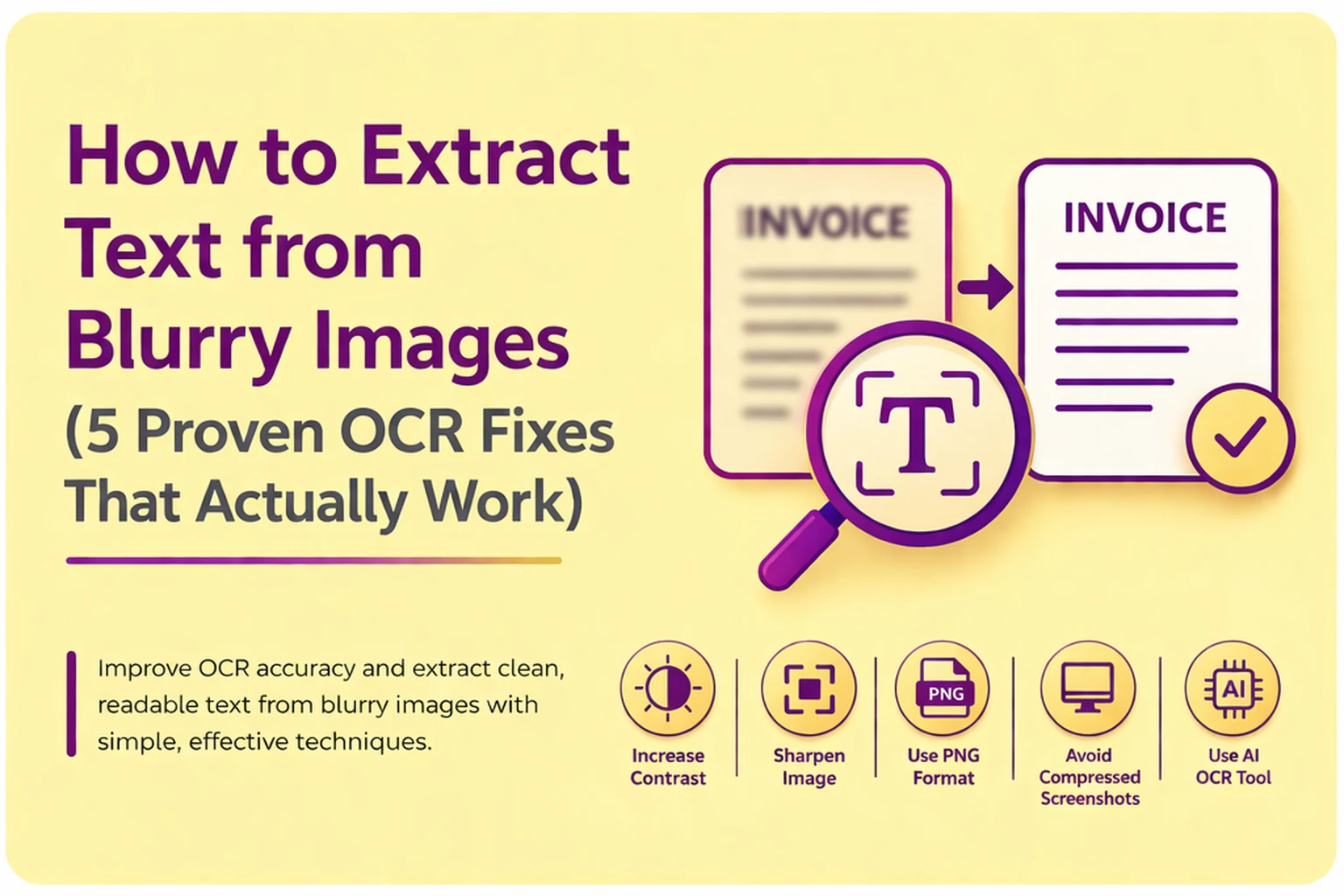
To extract text from blurry images more accurately:
-
Increase contrast to separate text from the background
-
Apply light sharpening to restore character edges
-
Use PNG format instead of compressed JPG
-
Avoid low-quality or compressed screenshots
-
Use an AI-powered OCR tool designed for imperfect images
These steps improve how OCR systems detect letter shapes, which directly impacts accuracy.
Why OCR Struggles with Blurry Images?
OCR (Optical Character Recognition) works by identifying patterns in text. The lines, curves, and spacing that define each letter. When an image is blurry, these patterns become distorted or merged together, making it difficult for the system to distinguish between similar characters.
For example, a slightly blurred “8” may be recognized as “B,” or a faint “i” might disappear entirely. Small fonts, motion blur, and poor lighting make this even worse.
If text is actually pen-on-paper shorthand rather than a digital font. A standard OCR engine will fail; instead, you should run it through a dedicated handwriting to text extractor designed to recognize fluid, non-standard line shapes.
Modern AI-based OCR tools are better at handling imperfect inputs, but they still rely on one fundamental requirement: clear separation between text and background. When that clarity is missing, accuracy drops quickly.
This is why improving the image itself is often more effective than switching between OCR tools.
1. Increase Contrast Before Uploading
One of the simplest and most effective fixes is adjusting contrast. Blurry images often look flat, with text blending into the background instead of standing out clearly.
By increasing contrast, you make the text darker and the background lighter (or vice versa), which helps OCR engines detect character boundaries more reliably.
Even small adjustments can make a noticeable difference. Most smartphones, built-in photo editors, and free tools allow you to tweak contrast in seconds.
Expert Insight
Contrast enhancement works because OCR systems rely on edge detection. Strong contrast creates sharper transitions between pixels, making it easier for the algorithm to “see” each character.
2. Apply Light Sharpening to Restore Edges
Blurriness reduces the definition of letter edges, which is exactly what OCR systems depend on. Sharpening helps recover some of that lost definition by enhancing the outlines of characters.
The key is to apply sharpening carefully. Too much sharpening introduces noise, which can confuse the OCR engine and lead to worse results.
A subtle increase is usually enough to:
-
Improve character separation
-
Reduce misreads
-
Make faint text more recognizable
Practical Tip
If the image already has grain or noise, combine light sharpening with slight contrast adjustment for better results.
3. Use PNG Instead of JPG for Better Accuracy
File format plays a bigger role in OCR than many people expect.
JPEG images use compression, which removes fine details to reduce file size. This often affects text edges, especially in low-quality images. PNG files, on the other hand, preserve image detail without compression.
When working with blurry text, every small detail matters. Using PNG helps maintain whatever clarity is available.
| Format | OCR Accuracy Impact |
| PNG | High (preserves detail) |
| JPG | Lower (compression artifacts) |
| Good if high resolution |
Smart Tip
If your image is already blurry, avoid saving or resaving it as JPG multiple times. Each time reduces quality further.
4. Avoid Compressed or Low-Quality Screenshots
Not all blurry images come from poor photography. Many are the result of compression. Especially when images are shared through messaging apps or downloaded from websites.
Platforms like WhatsApp, Slack, or social media often reduce image quality automatically. This compression can blur text, reduce resolution, and introduce artifacts that interfere with OCR.
Whenever possible:
-
Capture screenshots directly from the original source
-
Avoid forwarded or re-downloaded images
-
Use full-resolution screen capture tools
Also Read: OCR for Low-Resolution Screenshots: How to Capture Clean Text from Your Screen
Real-World Insight
A clean screenshot taken directly from your screen will almost always produce better OCR results than the same image downloaded from a messaging app.
If you are currently trying to process a captured screen snip, you can use our web utility to extract text from a screenshot instantly without needing to save it to your local files first
5. Use an AI-Powered OCR Tool for Difficult Images
Traditional OCR tools rely heavily on clean input. Modern AI-based OCR tools are trained on real-world data, including blurry and low-resolution images, which makes them more flexible.
These tools can:
-
Predict partially visible characters
-
Handle inconsistent fonts
-
Adapt to noisy or imperfect images
However, even the best OCR system performs better when the image is optimized first. Combining image improvements with a capable OCR engine gives the best results.
👉 If you’re working with bulk images, try using a tool designed to handle multiple inputs: picturetext.org
Common Mistakes That Reduce OCR Accuracy
Many OCR failures come from small issues that are easy to overlook.
Uneven lighting can create shadows that hide parts of letters. Glare from reflective surfaces can wash out text completely. Extremely small fonts may not provide enough detail for accurate recognition.
Another common problem is poor cropping. Including unnecessary background or cutting off parts of text can confuse the OCR system.
Paying attention to these details before uploading your image often makes a bigger difference than switching tools.
Also Read: OCR Not Working? 9 Common Fixes for Unreadable Text Recognition
When Blurry Images Can’t Be Fixed?
While many blurry images can be improved, there are limits.
If the image is heavily pixelated, extremely low resolution, or affected by strong motion blur, there may not be enough information for accurate OCR. In these cases, even advanced tools will struggle.
The best solution is to go back to the source:
-
Retake the photo with better lighting
-
Use a document scanning app
-
Capture at a higher resolution
Improving image quality at the source is always more effective than trying to fix it afterward.
Also Read: How to Extract Text from PDF (Step-by-Step Guide with Real Methods 2026)
Final Thoughts
Blurry images are one of the most common obstacles in OCR, but they are rarely a dead end. In most cases, the issue isn’t the OCR tool itself. It’s the quality of the input. When text lacks clear edges, proper contrast, or sufficient resolution, even advanced systems struggle to interpret it accurately.
What makes a real difference is understanding how OCR “sees” your image. It doesn’t read text the way humans do. Instead, it relies on patterns, shapes, and pixel-level distinctions. Small improvements like increasing contrast, restoring edge definition, or avoiding compression can significantly change how those patterns are detected.
At the same time, technology has evolved. Modern AI-based OCR tools are far more capable than older systems and can handle imperfect images better than before. But even these tools perform best when the image is prepared thoughtfully.
The most reliable approach is to treat OCR as a simple two-step process: first improve the image as much as possible. Then use a capable tool to extract the text. This combination consistently produces better results than relying on software alone.
In the end, better OCR accuracy doesn’t come from a single trick. It comes from a combination of small, intentional improvements. Once you apply these consistently, even low-quality or slightly blurry images can become clear, usable text without frustration.