
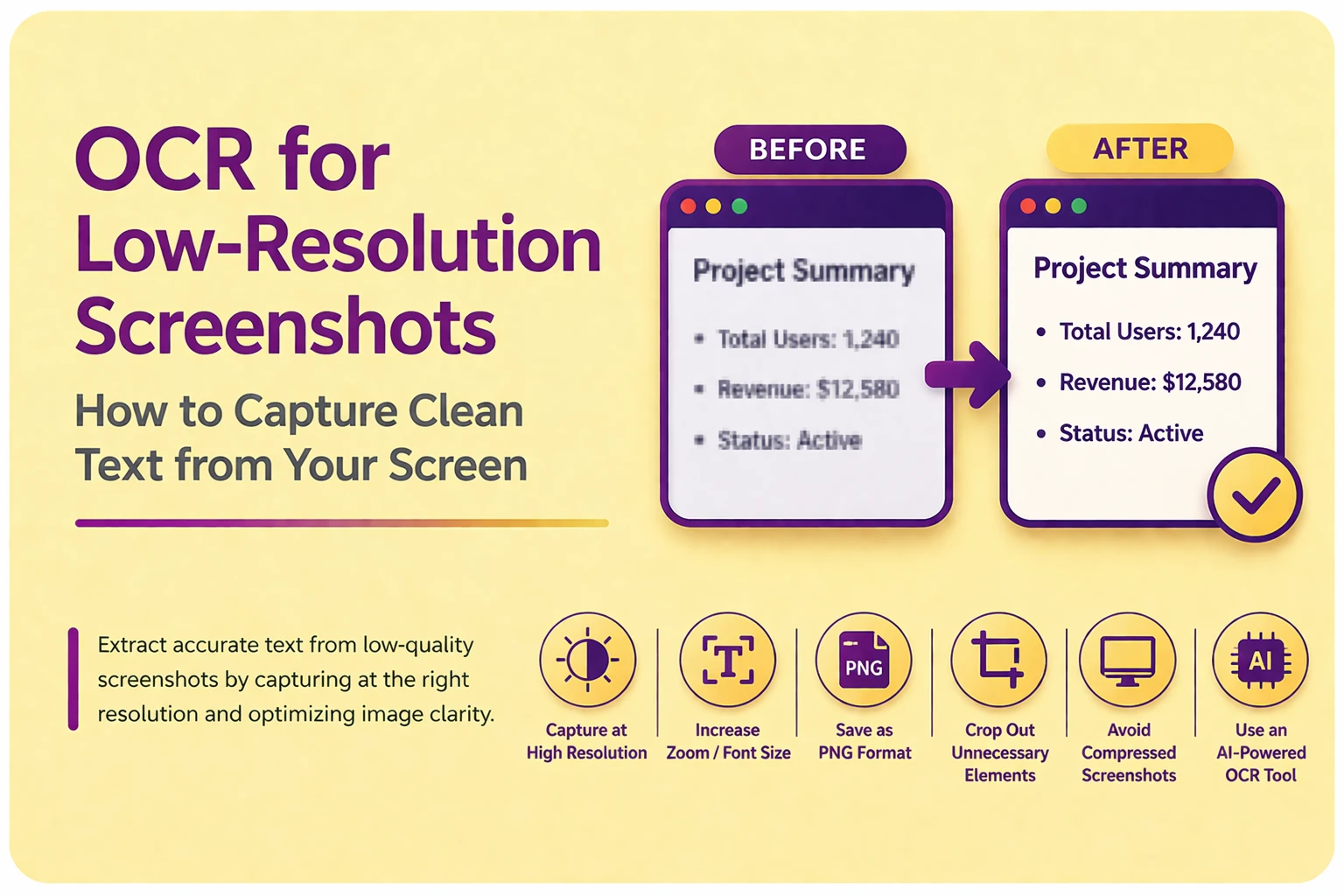
Screenshots are one of the most common sources of text for OCR today. Whether you're capturing notes from a presentation, saving online content, or grabbing text from software interfaces, screenshots are quick and convenient.
But when you try to extract text from them, the results aren’t always accurate.
You may notice:
-
Missing words
-
Strange symbols
-
Broken formatting
-
Completely unreadable output
In most cases, the problem isn’t the OCR tool. It’s the quality of the screenshot itself.
Low-resolution screenshots, compressed images, and poorly captured text can significantly reduce OCR accuracy. The good news is that with the right approach, you can fix these issues and consistently extract clean, usable text.
Quick Facts (At a Glance)
| Factor | Impact on OCR |
| Screenshot resolution | Higher resolution = better accuracy |
| Font size | Small fonts reduce recognition |
| Compression | Loss of detail harms OCR |
| Screen scaling | Can distort text clarity |
| Capture method | Direct capture improves quality |
| Text Alignment | Skewed or tilted text reduces recognition accuracy |
Why OCR Struggles with Screenshots
Screenshots may look clear to the human eye, but OCR systems analyze them differently. What matters isn’t just readability, it’s pixel-level clarity.
When screenshots are low-resolution or compressed:
-
Characters lose sharp edges
-
Pixels blend together
-
Fine details disappear
For example, a clean “E” might appear slightly blurred, making it resemble an “F” or “C” to the OCR engine.
Another issue is that many screenshots contain UI elements, icons, and background noise, which can interfere with text detection.
Understanding these limitations is key to improving results.
1. Capture Screenshots at Native Resolution
One of the biggest mistakes users make is capturing screenshots at reduced resolution or after zooming out.
When text is too small on the screen, it gets captured with fewer pixels, which reduces detail.
Why This Matters
OCR systems rely on pixel density to recognize characters. The fewer pixels available, the harder it becomes to identify shapes accurately.
Best Practice
Always capture screenshots at native resolution:
-
Zoom in before capturing
-
Avoid resizing after capture
-
Use full-screen or high-resolution displays
Expert Insight
Capturing at a higher resolution preserves character structure, which is the foundation of accurate OCR.
2. Avoid Compressed Screenshots from Apps
Many platforms automatically compress images to save space.
This includes:
-
Messaging apps (WhatsApp, Slack)
-
Social media platforms
-
Email attachments
Compression removes fine details, especially around text edges, which directly affects OCR performance.
Real-World Problem
A screenshot taken directly from your screen may produce perfect OCR results. But the same image downloaded from a messaging app may fail completely.
Fix
-
Always use original screenshots
-
Avoid re-downloaded or forwarded images
-
Save images in high-quality formats
3. Increase Font Size Before Capturing
Small text is one of the most overlooked issues in OCR.
Even if the screenshot looks readable, small fonts contain fewer pixels, making it harder for OCR systems to detect shapes.
Why It Matters
OCR engines perform better when characters are large and clearly defined. Tiny text increases ambiguity.
Best Practice
Before taking a screenshot:
-
Zoom in on the content
-
Increase browser or app zoom (125%–150%)
-
Use accessibility settings if needed
This simple step can dramatically improve OCR accuracy.
4. Use High-Quality Formats (PNG Over JPG)
File format plays a critical role in preserving screenshot quality.
JPEG compression reduces file size by removing image data, which often affects text clarity.
PNG, on the other hand, retains full detail.
| Format | OCR Performance |
| PNG | High accuracy |
| JPG | Lower accuracy |
| WebP | Depends on compression |
Practical Tip
Always save screenshots in PNG format when planning to use OCR.
Read Also: OCR Not Working? 9 Common Fixes for Unreadable Text Recognition
5. Eliminate Background Noise and UI Clutter
Screenshots often include:
-
Buttons
-
Icons
-
Background patterns
-
Notifications
These elements can confuse OCR systems, especially when they overlap or sit near text.
Why It Matters
OCR tools try to detect text regions. Extra elements can lead to incorrect detection or mixed output.
Fix
-
Crop the screenshot to focus only on text
-
Remove unnecessary UI elements
-
Avoid capturing cluttered screens
6. Ensure Proper Contrast and Color Balance
Screenshots with poor contrast can reduce text visibility.
Examples:
-
Gray text on white background
-
Dark mode with low brightness
-
Colored text on similar backgrounds
Solution
Adjust contrast and brightness:
-
Increase contrast slightly
-
Convert to grayscale if needed
-
Avoid color-heavy backgrounds
Expert Insight
High contrast improves edge detection, which is essential for OCR accuracy.
7. Avoid Screen Scaling Issues
Screen scaling (like 125% or 150%) can sometimes distort how text is rendered in screenshots.
This depends on your operating system and display settings.
Problem
Scaled text may appear slightly blurred or uneven, especially on lower-resolution displays.
Fix
-
Capture at native scaling when possible
-
Use high-resolution displays (Full HD or higher)
-
Test different scaling settings if OCR accuracy is low
8. Use Snipping Tools Instead of Camera Photos
Some users take photos of screens instead of screenshots. This introduces multiple issues:
-
Motion blur
-
Lighting glare
-
Perspective distortion
Why This Hurts OCR
Camera photos distort text alignment and reduce clarity.
Best Practice
Always use built-in screenshot tools:
-
Windows Snipping Tool
-
Mac Screenshot (Cmd + Shift + 4)
-
Browser extensions
9. Choose the Right OCR Tool for Screenshots
Not all OCR tools handle screenshots well.
Modern AI-based OCR tools are better at:
-
Detecting text in UI layouts
-
Handling mixed elements
-
Working with imperfect images
What to Look For?
-
AI-based recognition
-
Support for screenshots and UI text
-
High accuracy on digital content
👉 If you need a specialized solution for screen snips. You can use our dedicated screenshot to text converter to instantly pull clean data straight from your clipboard buffer without losing character formatting.
Common Screenshot OCR Mistakes
Many OCR failures come from habits users don’t notice.
For example:
-
Capturing zoomed-out content
-
Using compressed images
-
Ignoring font size
-
Uploading cluttered screenshots
Individually, these may seem minor. But together, they significantly reduce accuracy.
Being intentional about how you capture screenshots can make a huge difference.
When Screenshot OCR Still Fails?
Even with improvements, some screenshots may still produce poor results.
This happens when:
-
Text is extremely small
-
Image quality is already degraded
-
Fonts are too stylized
What You Can Do
-
Re-capture at higher zoom
-
Use original digital text if available
-
Try a different OCR tool
Sometimes, improving the source is the only solution.
Final Thoughts
Screenshots are one of the easiest ways to capture text, but they are not always ideal for OCR. The quality of the screenshot directly determines how accurately text can be extracted.
The key is not just using a good OCR tool, but preparing the screenshot properly before processing.
By focusing on resolution, clarity, contrast, and format, you can significantly improve results and avoid common errors.
In most cases, a few small adjustments are all it takes to turn a low-quality screenshot into clean, readable text.